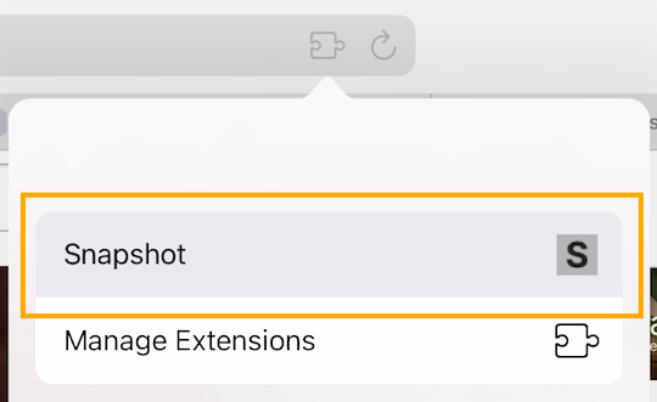
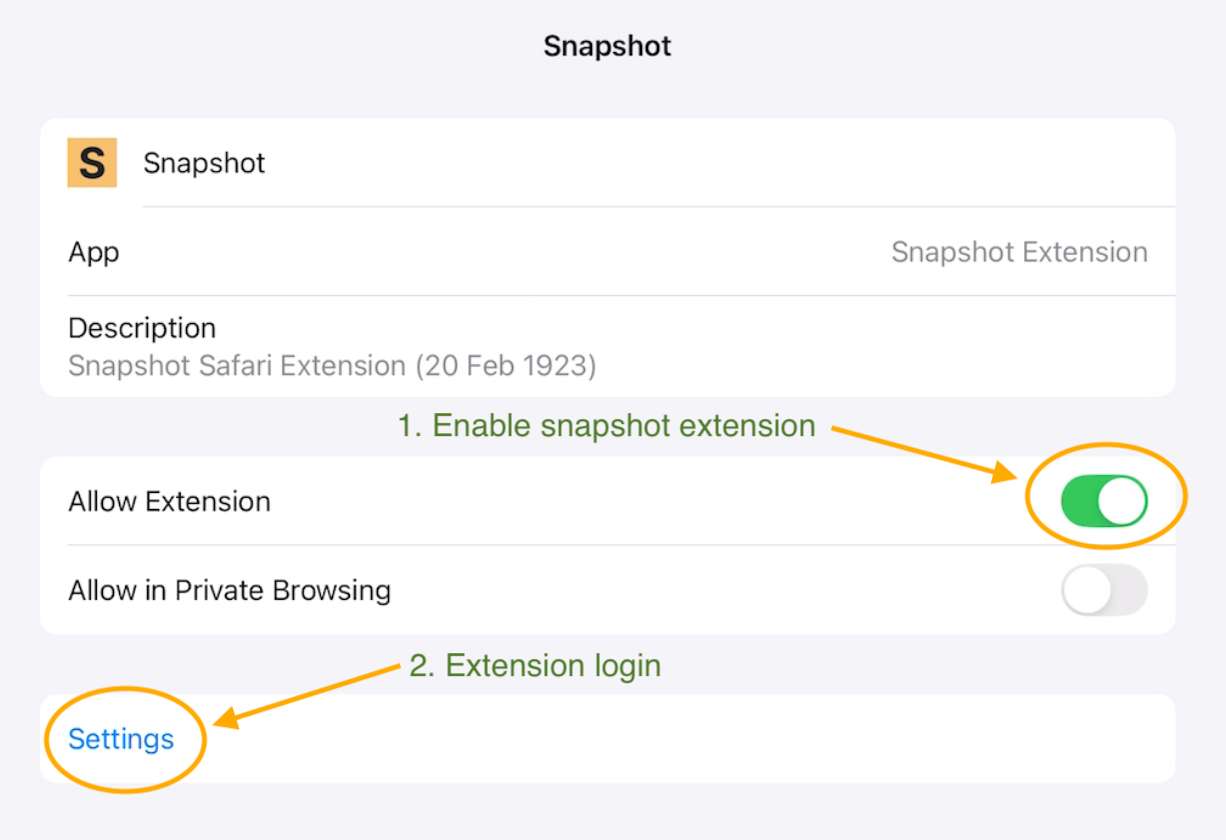
Login to snapshot extension
Right click on any web page → Snapshot login
( or press the snapshot extension button )
Login with your snapshot account email and password.
If you dont have an account yet Sign up here.
Save articles and bookmarks
Click the snapshot extension button
Save web screenshots
Right click → Screenshot
Move mouse to automatically select screenshot area - click area to save screenshot.Drag mouse to screenshot a custom area.
Save images
Right click on image → Save image
Save page highlights
1. Select page content → click snapshot extension button
2. Select more content and tap highlight button displayed next to your selection.
3. When finished highlighting tap "Save" button or use keyboard shortcut ⌘Ctrl + S .
2. Select more content and tap highlight button displayed next to your selection.
3. When finished highlighting tap "Save" button or use keyboard shortcut ⌘Ctrl + S .
Tip: Move mouse over a paragraph and press H key to highlight.
Save YouTube video summaries
1. Open the YouTube video transcript and wait for the transcript to display.
2. Tap snapshot browser extension button to open toolbar.
3. Tap save transcript summary button
2. Tap snapshot browser extension button to open toolbar.
3. Tap save transcript summary button
Save YouTube transcript highlights
1. Open the YouTube video transcript ("Show transcript" button in video description).
2. Wait for the transcript to display.
3. Tap the snapshot browser extension button to open the snapshot toolbar.
4. Tap the highlight transcript button to start a transcript highlight, tap again to stop highlight.
5. When finished tap the Save button.
2. Wait for the transcript to display.
3. Tap the snapshot browser extension button to open the snapshot toolbar.
4. Tap the highlight transcript button to start a transcript highlight, tap again to stop highlight.
5. When finished tap the Save button.
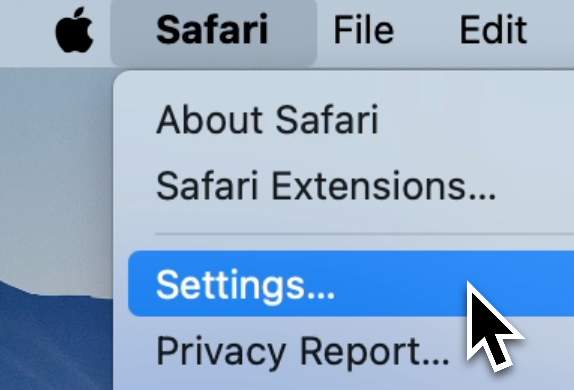
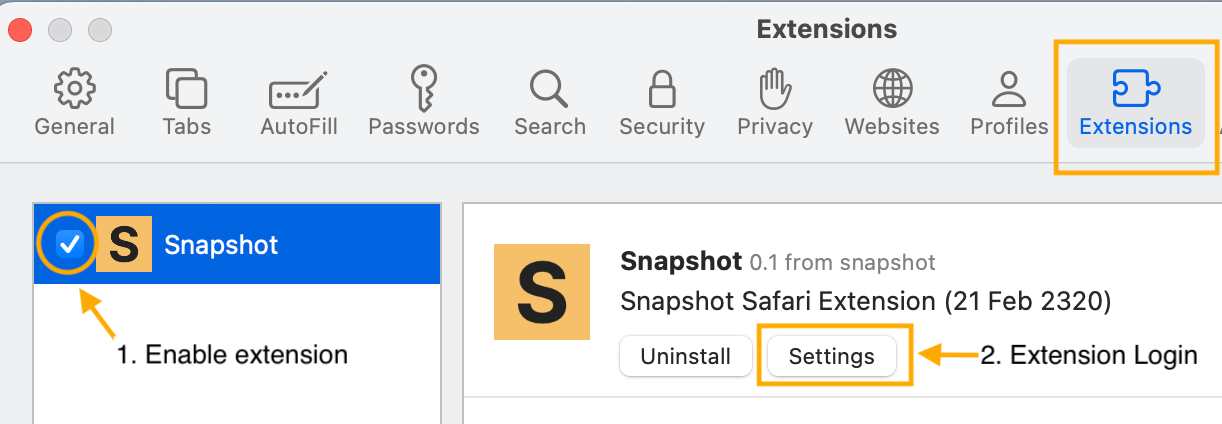

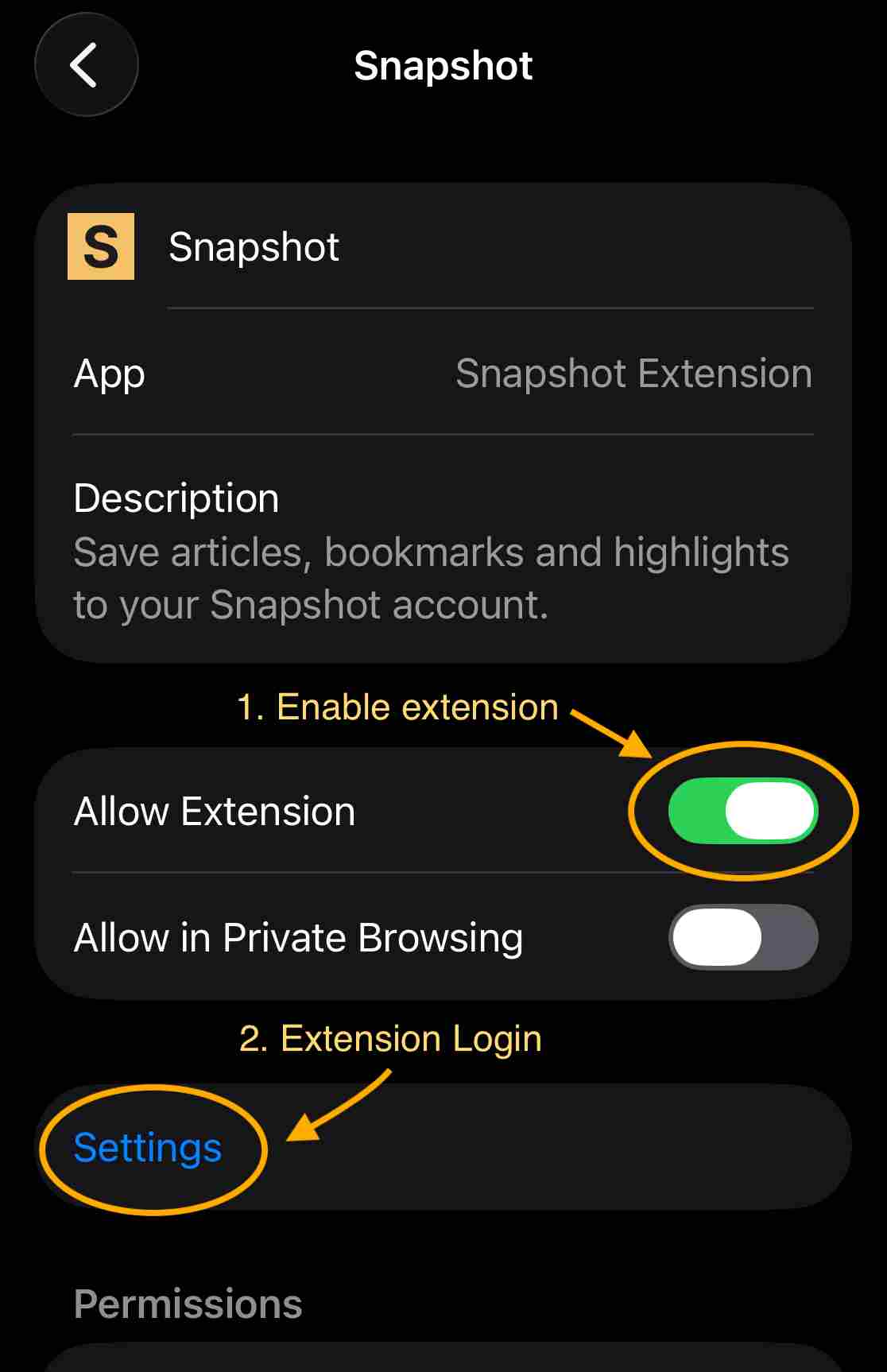

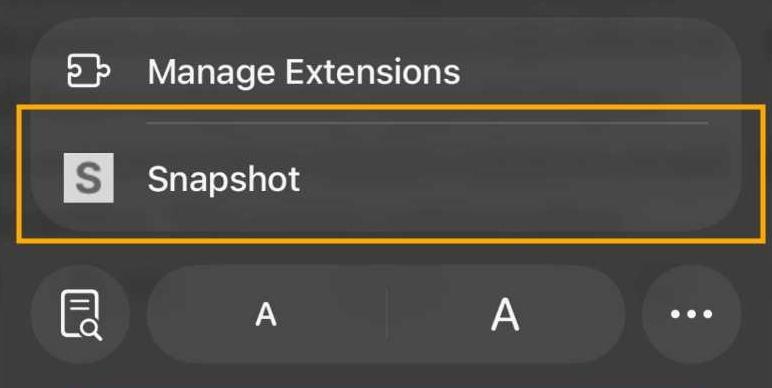
 Tap the snapshot extension button